Cursor Computer Use lets agents drive desktop apps
Cursor said on October 23 that its agents can click and type in desktop apps like the iOS Simulator to test their own code. Macs need two permissions.
3 min read
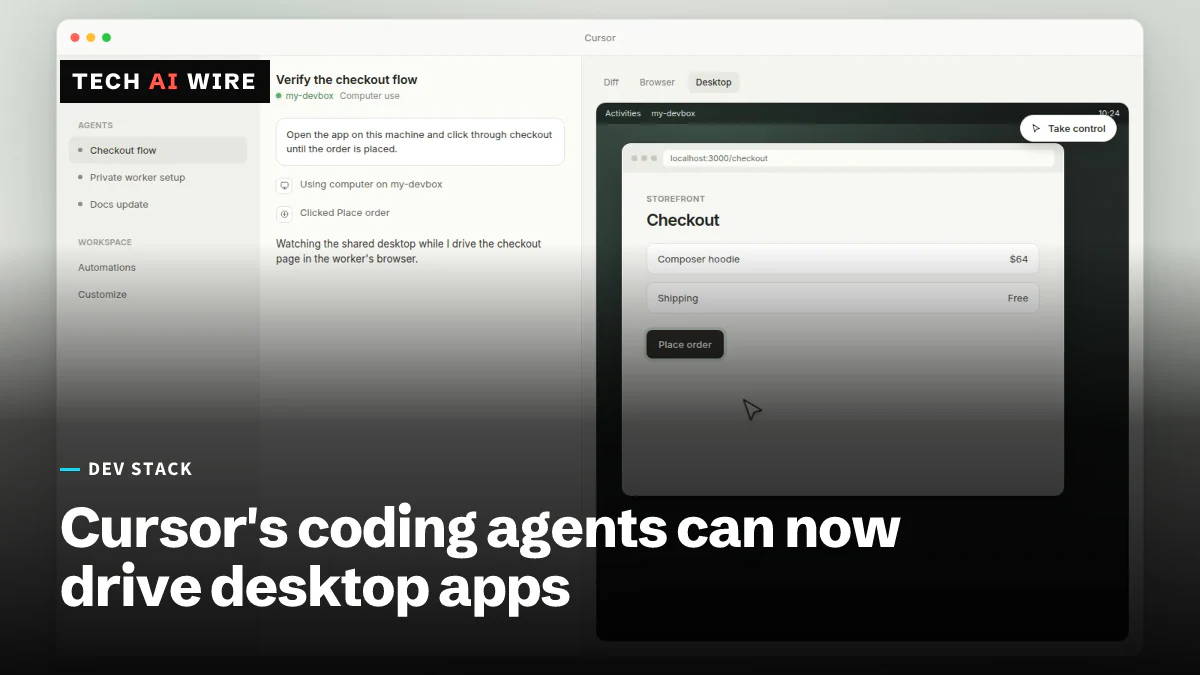
Cursor's coding agents can now operate desktop apps on a developer's own computer, the company announced on October 23, 2026. The new Computer Use tool lets an agent click, type and take screenshots in any app, including Apple's iOS Simulator, AlphaSignal reported. That means an agent can test the feature it just built, not only write the code for it.
What Computer Use does
Computer use is the term for an AI model that works a computer the way a person does. It looks at the screen, moves the pointer and presses keys. Until now, Cursor's agents mostly worked with files, terminals and a built-in browser.
Cursor's headline demo is an iPhone app. The agent builds a feature, opens the iOS Simulator, taps through the new screens and fixes its code based on what it sees, according to AlphaSignal. Byteiota describes the same flow with SwiftUI code, Apple's interface framework, ending with the agent committing its work. No person touches the keyboard in the demo.
There are two ways to start it, RuntimeWire and AlphaSignal report:
- On request: type
@Computer Usein an agent prompt. - On its own: the agent can pick the tool when a task needs a visual interface.
AlphaSignal says the feature arrives in an update to the Cursor desktop app, and no pricing change was announced.
How it runs on a Mac
On macOS, Computer Use runs through a separate helper app that Cursor's command-line tool manages, according to Byteiota. That helper needs two macOS permissions: Accessibility, which lets it control other apps, and Screen Recording, which lets it see them.
Flavio Copes, who published a setup guide on October 24, notes a common snag. The permissions go to the "Cursor Computer Use" helper, not to Terminal or Cursor itself. Cursor's documentation names the same helper.
What existed before
Desktop control was already available in two narrower forms. Cursor's cloud agents ran it inside isolated virtual machines, AlphaSignal says. Teams could also enable it on self-hosted workers, machines they manage that run Cursor agents.
Cursor's documentation covers that second setup. A worker gets computer use only when started with a flag:
agent worker --computer-use start
The docs call these settings "explicit opt-ins and are never enabled by the server." They support macOS and Linux workers. On Linux, the user installs tools such as xdotool and ffmpeg, because "Cursor does not install system packages for you." Enterprise admins can switch Computer Use off under MCP Configuration in team settings. The docs say that switch is on by default.
Cursor is not alone here. Byteiota reports that GitHub Copilot's command-line tool added computer use as a public preview. OpenAI added a version to its developer platform too, as covered in OpenAI Agents API adds computer use in a hosted browser. Byteiota says Cursor calls its own release production-ready rather than a preview; the other sources do not repeat that claim.
The security trade-off
The two Mac permissions reach far beyond one project folder, Byteiota warns. An agent with screen access can see whatever else is open, from email to password managers. Text on screen can also steer it. A web page or document could carry instructions the agent mistakes for yours, an attack known as prompt injection.
AlphaSignal's advice is to "treat GUI access as a privileged capability." Byteiota and AlphaSignal both suggest running these tasks under a dedicated test account or in a virtual machine.
What this means for developers
Computer Use closes a gap in agent coding: the agent can now check its work in the real app. It also widens what an agent can break.
- Use it for interface flows. It fits tasks where you would click through screens by hand. Copes notes it "is less useful for checking a pure function or an API response," where normal tests are faster.
- Run it under a separate macOS user. Grant the two permissions to an account with no personal email, chat or password manager signed in.
- Test against disposable data. Copes recommends a development build with throwaway data, then reopening the app to see whether saves really stuck. "A screenshot after pressing Save only proves what appeared at that moment," Copes writes.
- Check your team settings. If you administer an Enterprise plan, decide whether the Computer Use switch should stay on before developers start using it.
- Keep tests that do not need a screen. An agent clicking through a simulator is slow. Keep unit and integration tests as the main check, and use computer use for what they cannot see.
Sources
- Cursor's Computer Use Lets Its Coding Agent Click Through Desktop Apps - AlphaSignal
- Cursor lets coding agents operate desktop apps, including the iOS Simulator - RuntimeWire
- Cursor Computer Use: Agents Now Test Their Own Code - Byteiota
- How to use Cursor Computer Use - Flavio Copes
- Computer use and desktop sharing - Cursor Docs
Related articles
Replit CEO says it dropped Anthropic; insider disputes it
Replit CEO Amjad Masad said on October 16, 2026 that Replit no longer works with Anthropic, citing cost and performance. A source says the deal stands.
VS Code 1.141 sandboxes AI agents on Windows, macOS, Linux
VS Code 1.141 sandboxes AI agents on Windows, macOS and Linux, shows agent sessions in a grid and picks up Codex and Copilot chats started in other apps.
Atlassian puts OpenAI models inside Rovo and Jira
Atlassian and OpenAI expanded their partnership: OpenAI models now power Rovo, and ChatGPT and Codex reach Jira through an MCP server that takes 15M calls a day.
The weekly digest
One email every Friday with the week's top stories from all six desks: AI, dev tools, coding, the tech industry, startups and what's next. Free, no spam.